
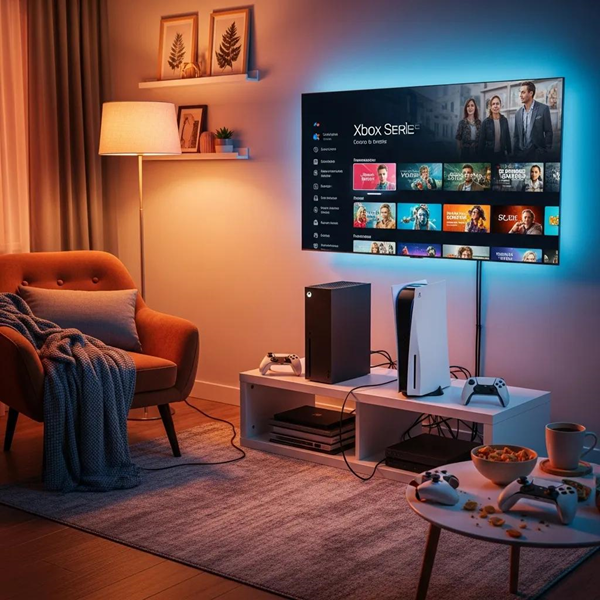
Streaming on your Xbox or PlayStation can turn your console into a full-featured entertainment hub. This guide walks you through setting up IPTV services, tuning your network for reliable playback, and fixing common problems. Follow the steps below and you’ll be able to stream live TV and on-demand media from your console with minimal fuss — from choosing compatible apps to reducing buffering and troubleshooting connectivity.
Key Takeaways
- Install IPTV on consoles to access many live channels and on-demand libraries.
- Popular IPTV apps include IPTV Smarters, Perfect Player, and Kodi — each offers different strengths.
- For smooth streaming, aim for a stable connection (25 Mbps minimum for HD; 50+ Mbps for 4K) and prefer a wired Ethernet link when possible.
- Simple network tweaks — router placement, firmware updates, and good-quality cables — noticeably improve playback.
- Most playback issues clear up after updating apps, rebooting hardware, or checking your internet speed.
- Mainstream live-TV apps like YouTube TV, Hulu + Live TV, and Sling TV give console-friendly live channels and DVR features.
- Remote Play on both platforms lets you stream games and media to phones and PCs.
- Lowering quality settings and reducing simultaneous network use helps stop buffering.
- Compare IPTV services and apps by compatibility, features, and ease of use before you commit.
How to Set Up IPTV Services on Xbox and PlayStation Consoles?
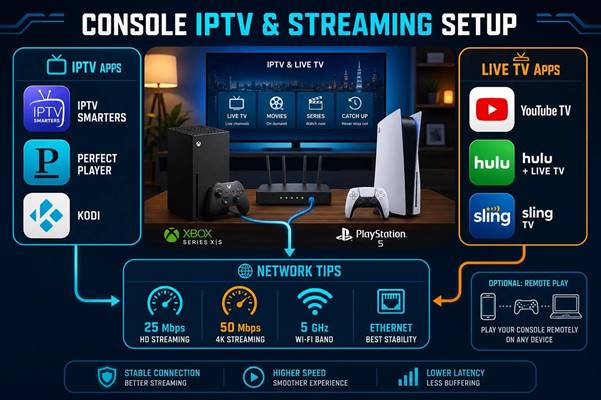
IPTV (Internet Protocol Television) delivers TV over the internet instead of traditional cable or satellite. On consoles, IPTV opens access to a wide selection of live channels and on-demand content. To get started, you’ll need a compatible app and your IPTV subscription details. Below are the main steps and compatibility considerations to make setup fast and reliable.
Which IPTV Apps Are Compatible with Xbox and PlayStation?
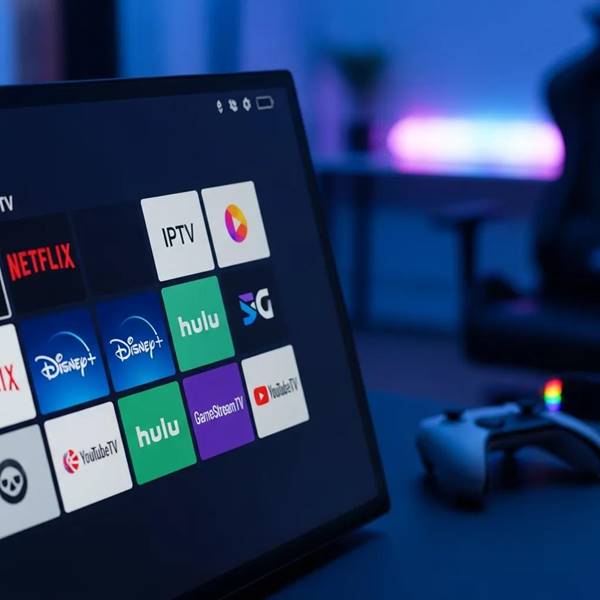
Several apps work well on consoles and give you flexible playback and playlist management. The most used choices are:
- IPTV Smarters: Intuitive layout, broad format support, and easy channel navigation — a great starting point for most users.
- Perfect Player: Lightweight and focused on playlist management; good if you want a simple, stable player.
- Kodi: A full media center that supports IPTV via add-ons — highly customizable for power users.
These apps commonly support EPG (program guides), parental controls, and multi-screen viewing to match different viewing habits.
What Are the Step-by-Step Instructions for IPTV Setup on Xbox and PlayStation?
Follow these steps to get IPTV running on your console:
- Download the IPTV App: Open your console’s app store, search for the app you want, and install it.
- Open the App: Launch the app from your home screen. Create or sign into an account if required.
- Enter Your IPTV Subscription Details: Add the M3U URL, portal URL, or login credentials provided by your IPTV service.
- Configure Settings: Tweak video quality, EPG options, and parental controls to match your preferences.
- Start Streaming: Browse channels and on-demand content — you’re ready to watch.
These steps will give you a stable, user-friendly IPTV setup on your console.
What Are the Network Requirements and Optimization Tips for Console Streaming?
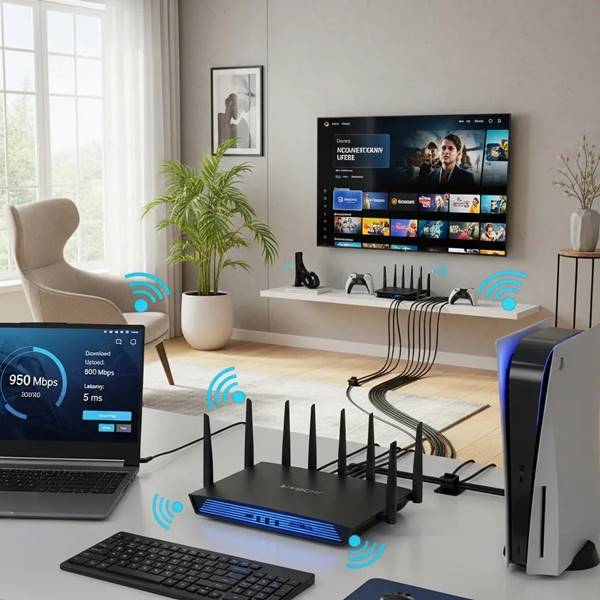
A reliable network is the backbone of good streaming. Below are the primary factors that affect playback quality and responsiveness on Xbox and PlayStation.
- Internet Speed: Aim for at least 25 Mbps for HD streaming. For consistent 4K playback, target 50 Mbps or higher.
- Wired vs. Wireless: Ethernet usually delivers lower latency and steadier throughput than Wi‑Fi, so use a wired connection when possible.
- Router Quality: Use a router that supports modern Wi‑Fi standards (Wi‑Fi 5 or Wi‑Fi 6) and keep its firmware current for best results.
Tuning these areas will reduce buffering and improve overall streaming stability.
How to Configure Wi-Fi and Ethernet for Optimal Streaming Quality?
Small changes to your network setup can make a big difference. Try these practical tips:
- Wi-Fi Configuration: Place your router centrally for even coverage. Use the 5 GHz band to avoid interference and get higher speeds. Keep router firmware up to date for performance and security improvements.
- Ethernet Configuration: Plug your console directly into the router with a quality cable (Cat 5e or better). Verify speeds in your console’s network settings to confirm the connection meets streaming needs.
These tweaks help ensure cleaner, more reliable playback on your console.
Which Network Troubleshooting Steps Improve Xbox and PlayStation Streaming?
If playback stutters or disconnects, try these quick fixes to pinpoint and resolve the issue:
- Restart Your Router: Power cycling the router often clears temporary network problems.
- Check for Interference: Remove sources of wireless interference — move the console or router away from large appliances and other electronics.
- Test Your Internet Speed: Run the console’s built-in speed test to confirm you’re getting the bandwidth you expect.
These steps will resolve most routine connectivity problems and help you decide whether further action is needed.
How to Stream Live TV and Media Using Xbox and PlayStation?
Once IPTV is set up, streaming live TV and on-demand content is straightforward. Both consoles support a wide range of streaming apps that add channels, DVR, and multi-device features to your entertainment setup.
What Streaming Apps Provide Live TV on Gaming Consoles?
Here are popular console apps that deliver live TV and related features:
- YouTube TV: Broad live channel lineup plus cloud DVR and easy navigation.
- Hulu + Live TV: Combines a deep on‑demand library with live channels and bundle options.
- Sling TV: A flexible, budget-friendly choice with customizable channel packages.
Each app includes features like cloud DVR, multiple profiles, and cross-device streaming to match different viewing patterns.
How to Use Remote Play and Streaming Features on Xbox and PlayStation?
Both platforms let you stream games and media to other devices — useful when you’re away from the TV:
- For PlayStation: Download the Remote Play app to your phone or PC, sign in to your PlayStation Network account, and connect to your console to stream games and media remotely.
- For Xbox: Install the Xbox app on your mobile device, sign in with your Microsoft account, and link to your console to stream gameplay and access your library on the go.
Remote Play gives you flexibility to access games and media from other devices without moving the console.
What Are Common Streaming Issues on Xbox and PlayStation and How to Troubleshoot Them?
Even with good hardware, issues can pop up. Here are common problems and practical fixes so you can get back to watching quickly.
How to Resolve IPTV App Compatibility Problems?
If an IPTV app acts up, try these steps to restore normal function:
- Update the App: Make sure you’re running the latest app version; updates often patch bugs and improve compatibility.
- Check Subscription Status: Verify your IPTV subscription is active and your login details are correct.
- Reinstall the App: Remove and reinstall the app to clear corrupted settings or cached data.
These actions will resolve the majority of app compatibility issues.
What Are Solutions for Streaming Quality and Connectivity Issues?
When video quality drops or buffering occurs, try these fixes:
- Adjust Streaming Quality Settings: Lower the playback quality in the app if your connection can’t keep up.
- Limit Network Usage: Reduce the number of active devices or heavy downloads on your network while streaming.
- Contact Your ISP: If problems persist, ask your internet provider to check for outages or slowdowns in your area.
These measures should stabilize playback and improve your viewing experience.
How to Compare Streaming Apps and IPTV Providers for Xbox and PlayStation?
Choosing the right app or IPTV provider comes down to compatibility, features, and how you watch. Compare options on those criteria to find the best fit for your setup and budget.
Which IPTV Services Offer the Best Compatibility and Features?
Below is a quick comparison of widely used IPTV options and what they bring to the table:
| IPTV Service | Compatibility | Key Features |
| IPTV Smarters | Xbox, PlayStation | User-friendly interface, EPG support |
| Perfect Player | Xbox, PlayStation | Playlist management, customizable settings |
| Kodi | Xbox, PlayStation | Extensive add-ons, highly customizable |
This table highlights each service’s strengths so you can pick the one that suits your needs.
What Are the Differences Between Popular Streaming Apps on Consoles?
Consider these distinctions when choosing a mainstream live-TV app for your console:
| Streaming App | Content Type | Unique Features |
| YouTube TV | Live TV | Cloud DVR, multiple user profiles |
| Hulu + Live TV | Live TV, On-Demand | Extensive on‑demand library, bundle options |
| Sling TV | Live TV | Customizable channel packages |
Frequently Asked Questions
What are the benefits of using IPTV services on gaming consoles?
IPTV on consoles gives you a lot of content for less than typical cable packages, plus the convenience of watching across multiple devices. You can switch between gaming and streaming without extra hardware, access more niche channels, and use features like EPGs and parental controls depending on the app.
Can I use my existing IPTV subscription with a new console?
Yes — most IPTV providers let you sign in from multiple devices. Download the compatible app on your new console, log in with your existing credentials, and you should be able to access your subscription. Check your provider’s device limits or any service-specific requirements just in case.
How can I improve streaming quality on my console?
Start with a reliable internet connection (25 Mbps minimum for HD). Prefer Ethernet over Wi‑Fi, update router firmware, and reduce other heavy network activity while streaming. If needed, lower the stream quality in the app to prevent buffering.
Are there any specific settings I should adjust for gaming and streaming?
Yes. For gaming, prioritize performance where available. For streaming, set the app to the highest stable quality your connection supports. Enabling QoS on your router can also prioritize console traffic so games and streams stay smooth even when other devices are active.
What should I do if my IPTV app keeps crashing on my console?
First, update the app and your console’s system software. If crashes continue, clear the app cache or reinstall it. If problems persist, contact the IPTV provider for help — they may have known issues or account-related fixes.
Can I stream content from my console to other devices?
Yes. PlayStation’s Remote Play and Xbox’s mobile app both let you stream games and media to phones, tablets, or PCs. Install the appropriate app, sign in, and connect to your console to stream on the go.
Conclusion
Adding IPTV to your Xbox or PlayStation expands your entertainment options and keeps everything in one place. With the right app, a stable network, and a few configuration tweaks, you can enjoy live TV and on‑demand content with minimal interruptions. Try the recommended apps, test your connection, and tune settings for the smoothest experience — then sit back and enjoy your shows and games. Explore more IPTV setup guides and streaming options on WIGE IPTV.

0 Comments